Exporting Chromium Browser Manager .csv file and Importing into My1Login
Exporting Chromium Browser Manager .csv file and Importing into My1Login
Exporting Chromium Browser Manager .csv file
- Open Chromium Browser (Google Chrome or Microsoft Edge)
- Click the three dots in the top right corner and select Settings option
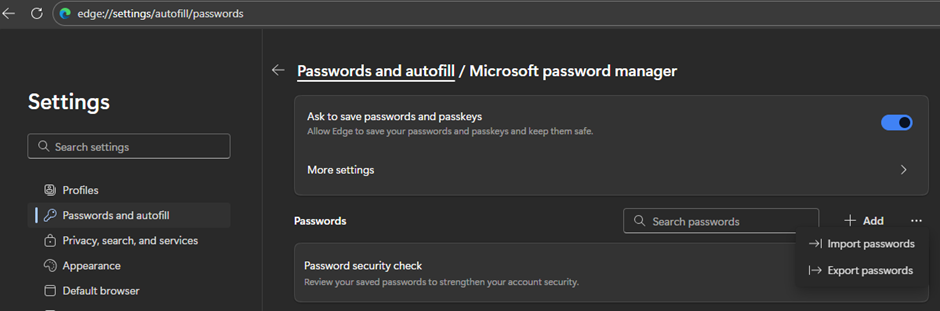
- On Edge, go to “Passwords and autofill” and select Edge Password Manager
- Click on the three dots in the password section of this screen and select Export passwords and save the file as a comma separated value (.csv) file
- On Chrome, go to “Autofill and Passwords” and select Google Password Manager
- Click on the Settings option in the left hand pane and in the section that says Export passwords, click Download file and save the file as a comma separated value (.csv) file
Editing the .csv file and uploading it to My1Login
- Open the file saved from the export in a spreadsheet capable software i.e. Microsoft Excel
- Check if the file has put the values in this column order:
- Name
- URL
- Username
- Password
- Note
- If this matches then no editing is necessary for upload.
- Go to your My1Login vault and click on “Bulk Import”
- This window will appear as below:
- Copy out the spreadsheet by highlighting the fields of the contents you wish to import and pasting them into the field.